Channels
Slack V1 (Legacy)
🚨
Archived Slack V1 documentation
This page is retained only as a historical reference for the deprecated V1 integration. Do not use the instructions below for a new Slack channel; they may no longer match the current Slack or Chat Thing screens. Set up a new Slack channel with the Slack V2 guide.
Archived Slack V1 setup video
The video below documents the legacy V1 setup flow.
Archived V1 connection steps
The steps below are kept for historical reference and should not be followed for a new setup.
🚨
Historical availability
At the time this V1 guide was written, the V1 Slack integration was available on Standard, Pro and Enterprise plans.
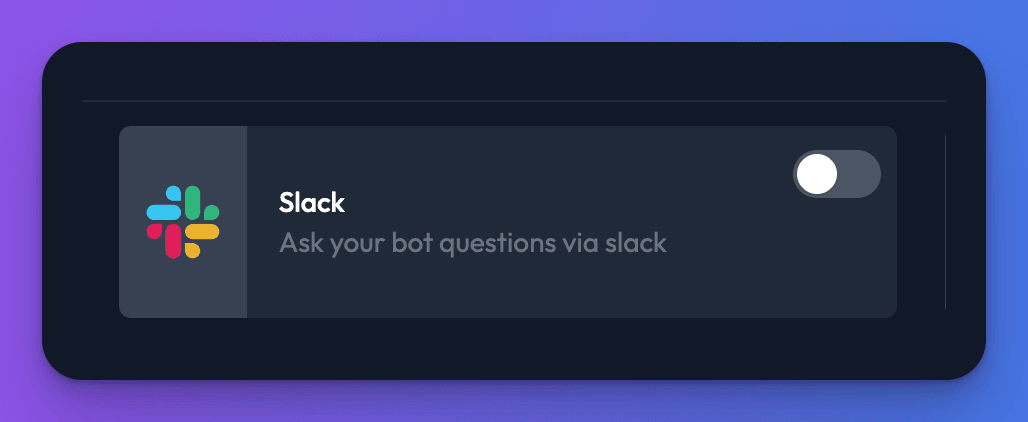
- From your bot dashboard, go to the Channels tab and enable the Slack channel by clicking its toggle switch.
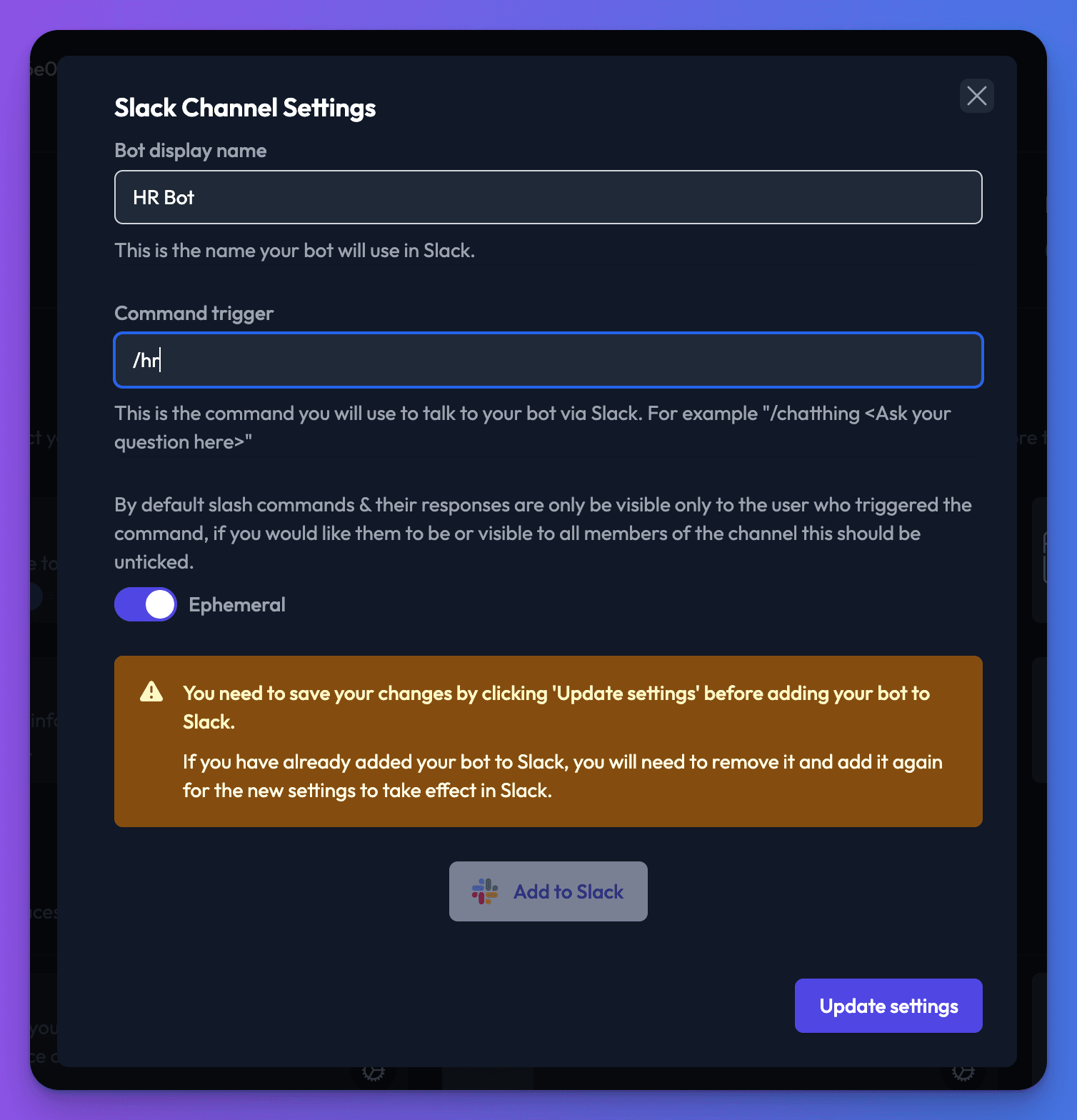
- Choose the bot’s display name, and the / command you would like to use in the settings window that appears. By default these are set to “Chat Thing” and “/chatthing”. If you change these click “Update settings”
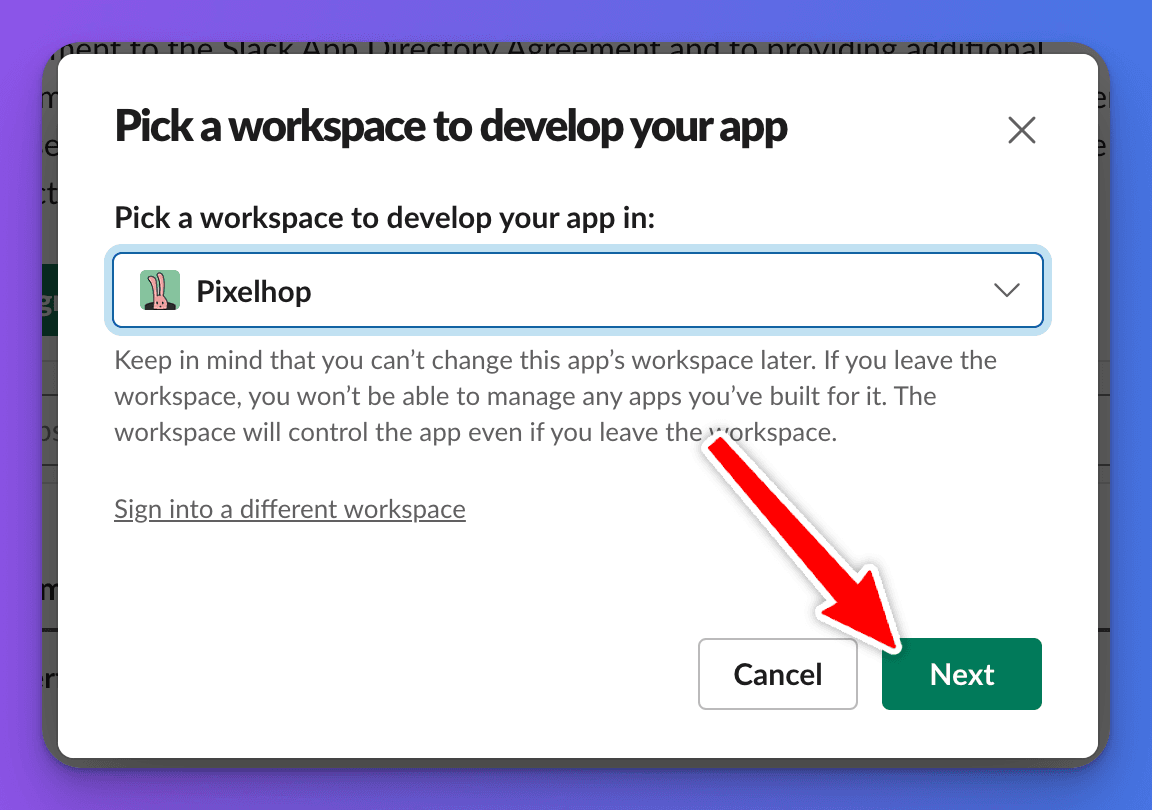
- Once you are happy with your display name and command trigger, click “Add to Slack”. This will open the Slack website in a new window. You will then be asked to select a Slack work space to add the bot to. Choose a workspace from the dropdown menu, and click “Next”.
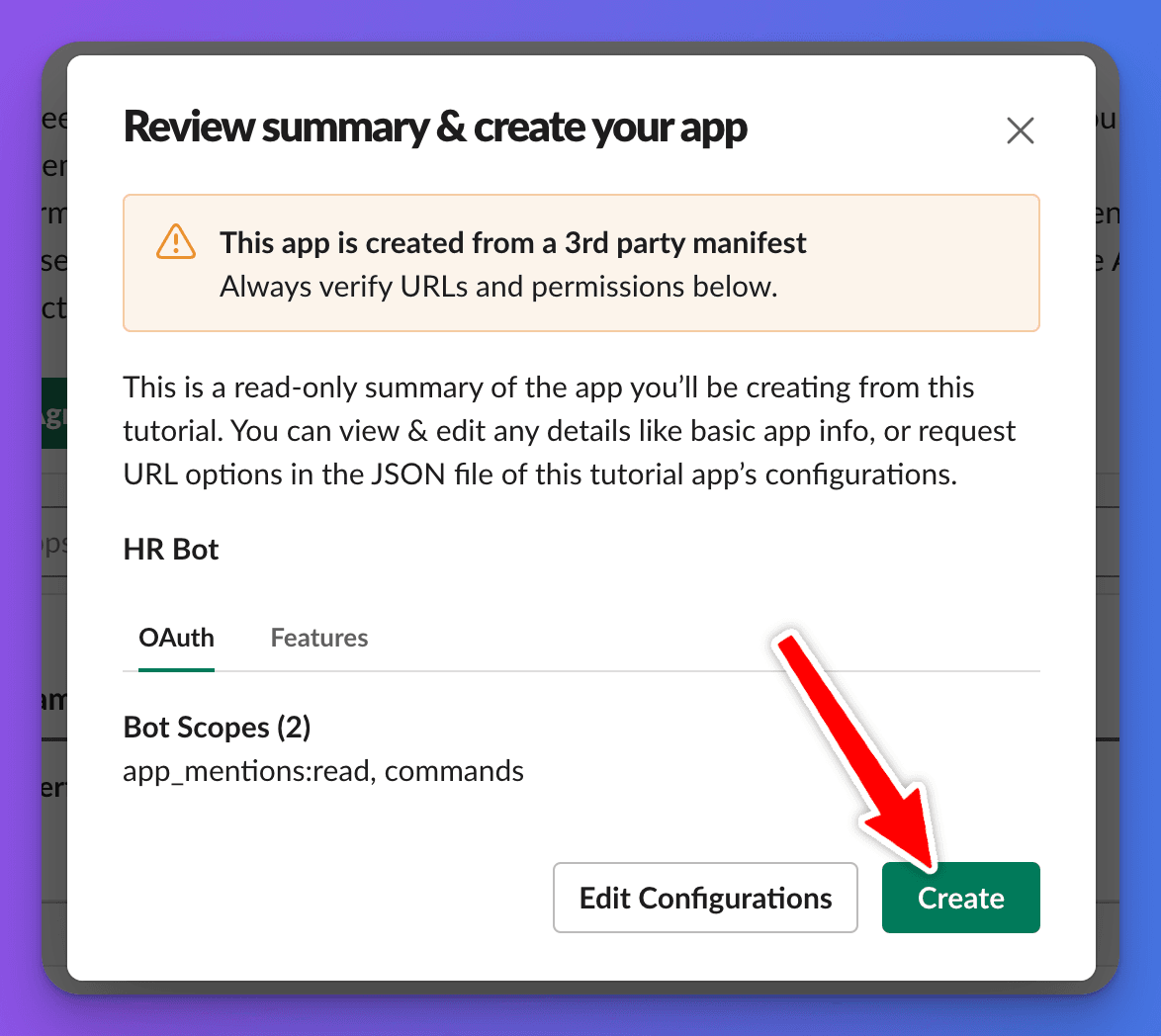
- Review the bots permissions, and if you are happy click “Create”.
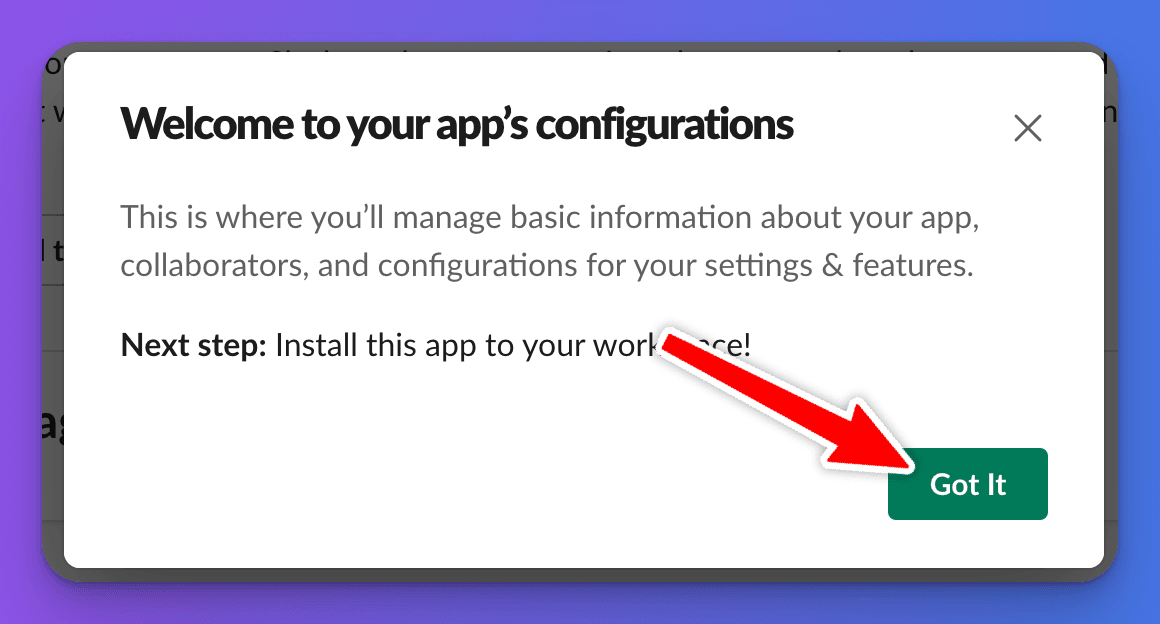
- Your bot will be created, and you will see a popup welcoming you to your Slack apps settings. Click “Got It” to close the window.
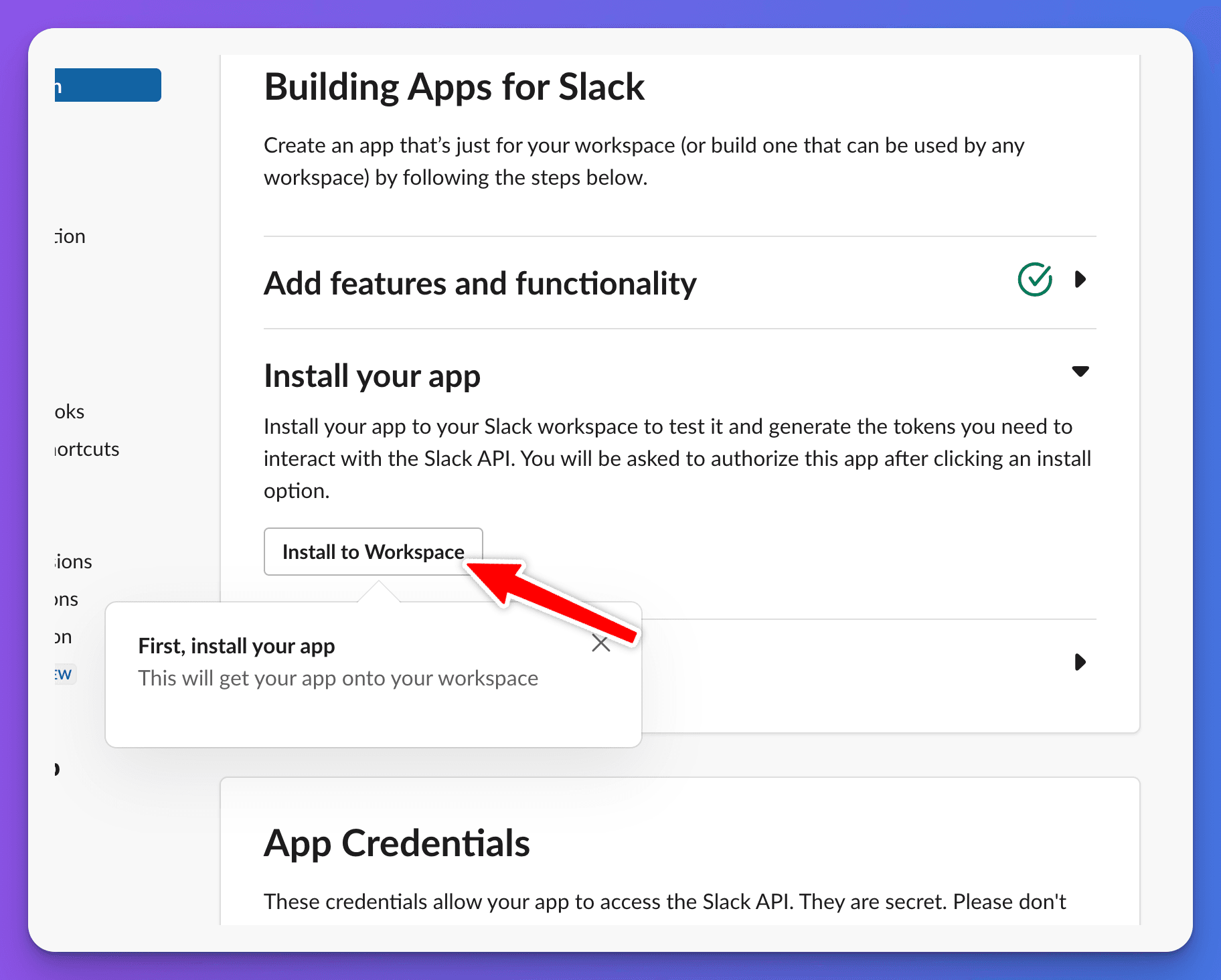
- Install the app! This is the most important part! Click the “Install to Workspace” button. This will open a new window asking you to allow the bot access to your Slack workspace.
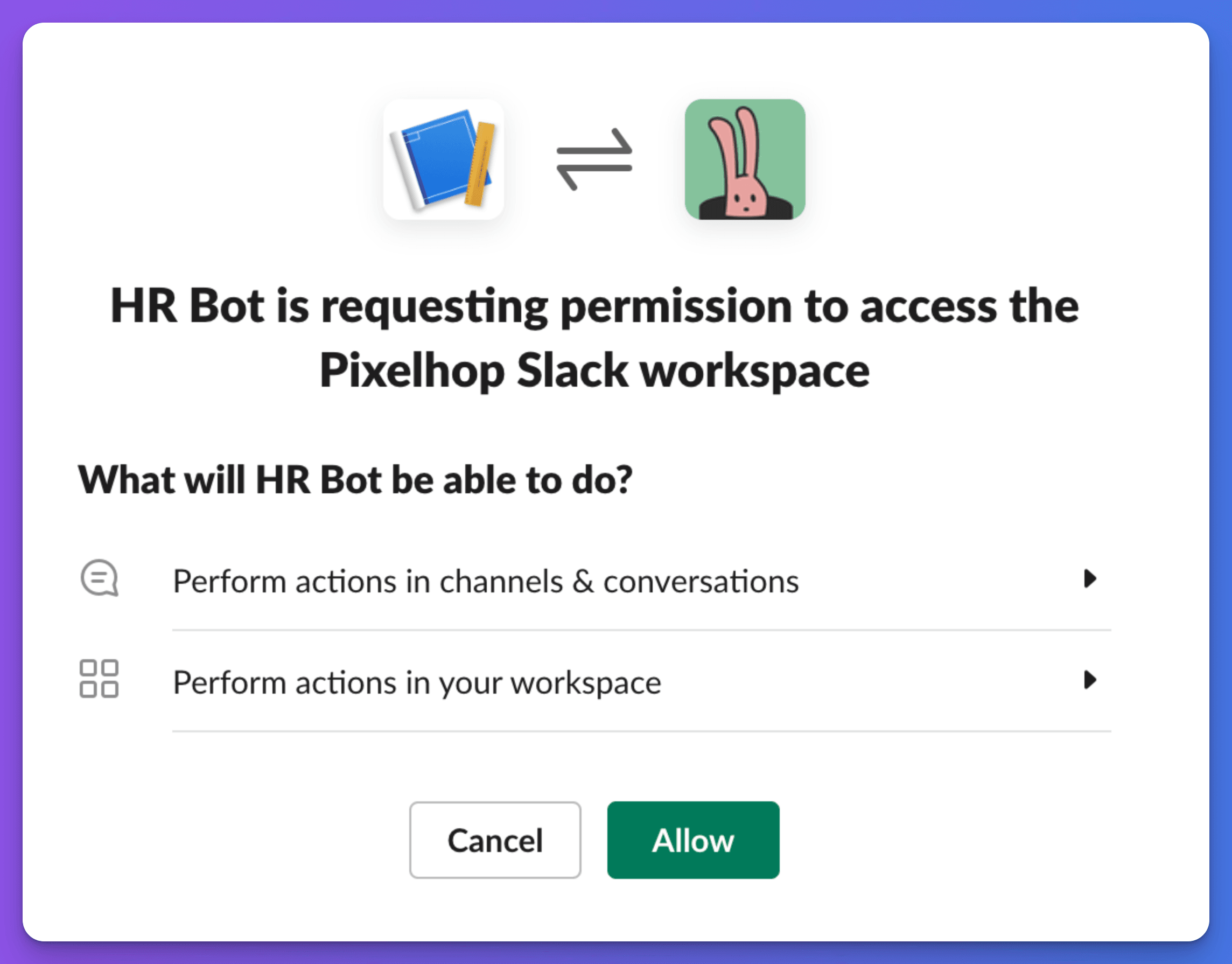
- Click “Allow”, to finish installing your bot!
- Talk to your bot in Slack. You will now be able to ask your bot questions by using the slash command you in the channel settings. For example
/chatthing Hi how do I book holiday?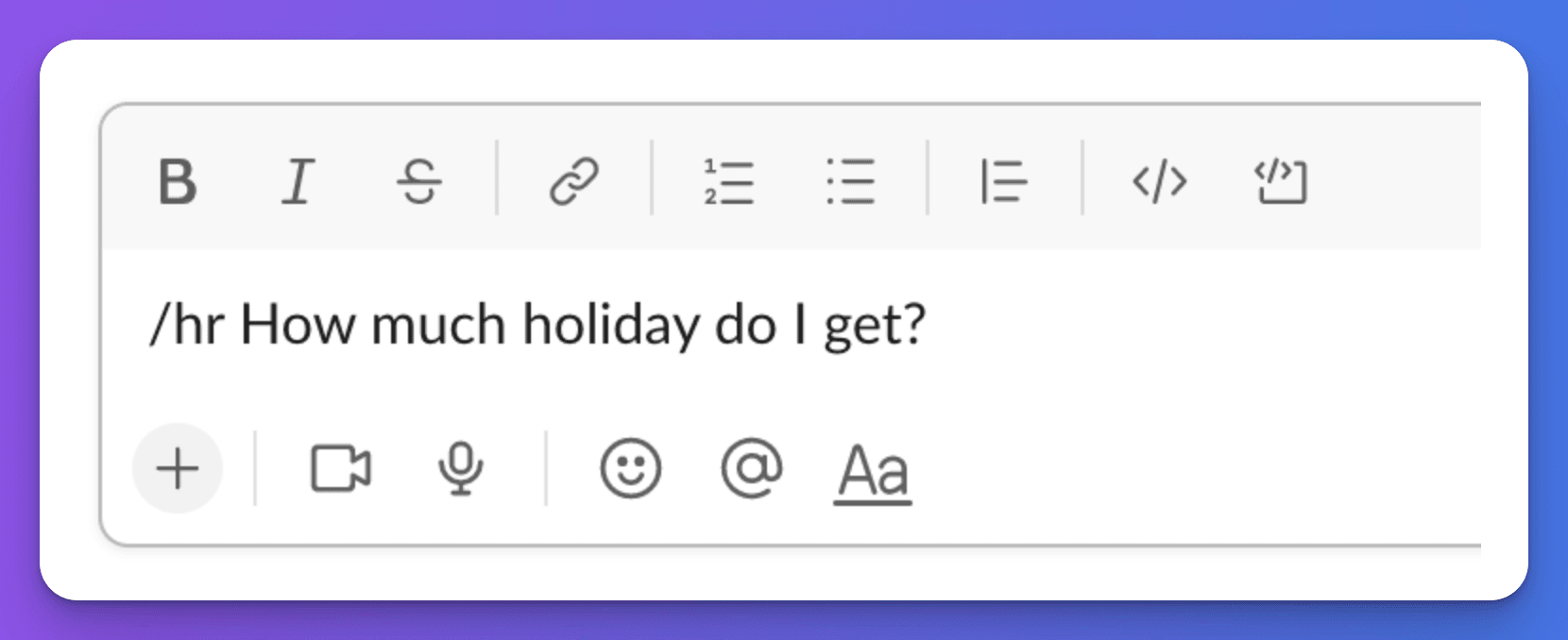
Archived V1 settings steps
In the archived V1 flow, changing settings required removing the bot from Slack and adding it again. These steps are retained only as a historical reference.
- From your bot’s management page in Slack, scroll down and click “Delete App”
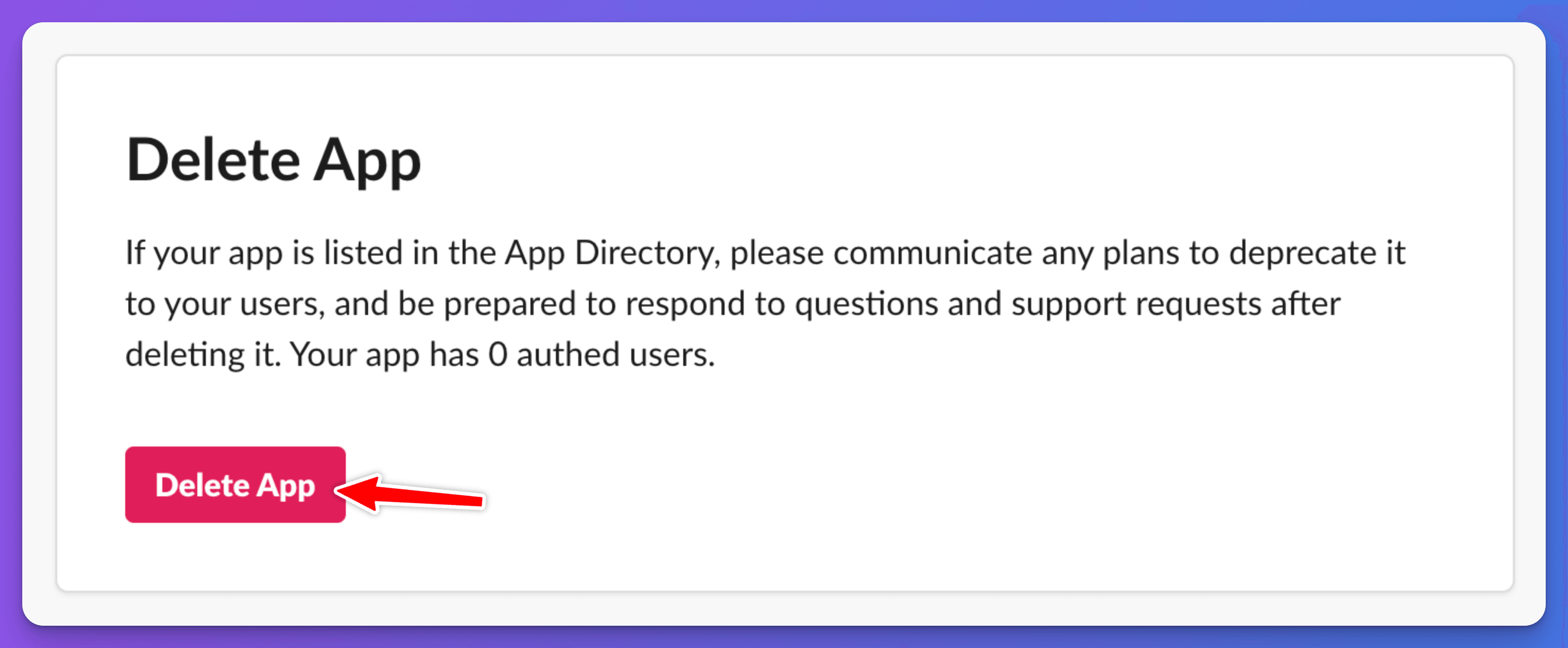
- Make your changes to the Slack channel settings from your bot’s dashboard on Chat Thing, and click “Update settings”.
- Click “Add to Slack” and go through the process of adding your bot to Slack again.