---
title: "Custom domains - Chat Thing Documentation"
canonical_url: "https://chatthing.ai/docs/custom-domains"
last_updated: "2026-07-20T15:03:01.539Z"
meta:
description: "Serve your bot's embed and SDK from a custom domain you control for a fully white-labelled experience."
"og:description": "Serve your bot's embed and SDK from a custom domain you control for a fully white-labelled experience."
"og:title": "Custom domains"
"twitter:description": "Serve your bot's embed and SDK from a custom domain you control for a fully white-labelled experience."
"twitter:title": "Custom domains"
---
**Bots**
# Custom domains
Custom domains let you serve your bot's chat widget and embed from a domain you control, like `chat.yourcompany.com`, instead of the default `embed.chatthing.ai`. This gives your bot a fully white-labelled experience that matches your brand.
---
## Prerequisites
🚨
Paid addon required
Custom domains are available as a paid addon. You can purchase the Custom Domain addon from your [billing page](https://staging-app.chatthing.ai/app/billing). Each addon provides one custom domain slot across your team.
## Adding a custom domain
1. Navigate to your bot's dashboard and click the **Channels** tab.
2. Open the **Web** channel settings.
3. Scroll down to the **Custom domains** section.
4. Enter your desired domain in the **Domain** field (e.g., `chat.yourcompany.com`).
5. Click **Add domain**.
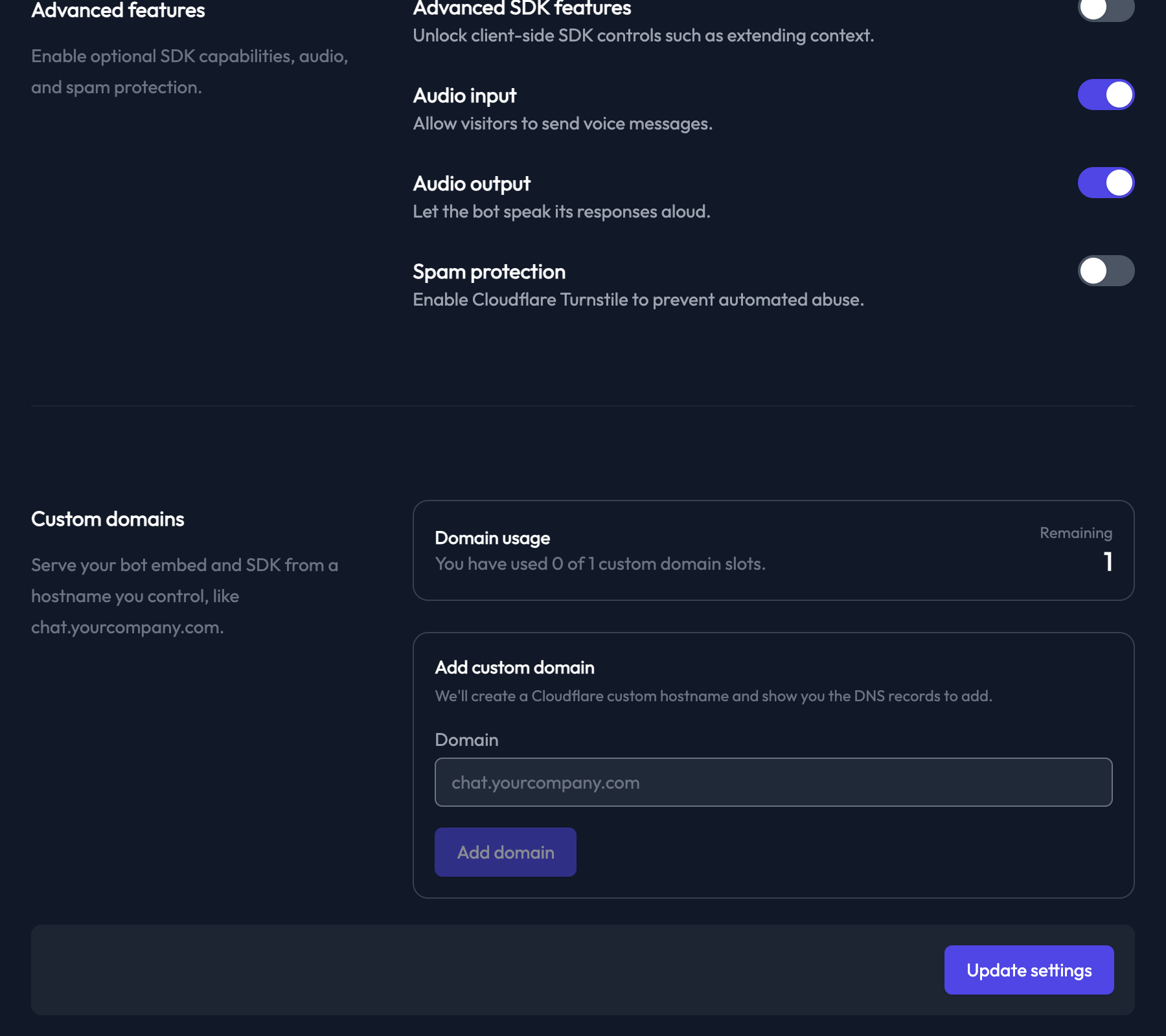
After adding your domain, Chat Thing will create a Cloudflare custom hostname and generate the DNS records you need to configure.
## Setting up DNS records
Once you've added your domain, you'll need to add three DNS records to your domain's DNS provider (e.g., Cloudflare, GoDaddy, Namecheap, etc.).
### 1. Certificate validation TXT record
This record is used by Cloudflare to issue an SSL certificate for your domain.
- **Type:** TXT
- **Name:** The value shown in the UI (typically `_acme-challenge.yourdomain.com`)
- **Value:** The value provided in the UI
ℹ️
Note
The certificate validation record values may take a few moments to generate after adding your domain. The UI will show a loading spinner while they are being generated.
### 2. Hostname ownership TXT record
This record verifies that you own the domain.
- **Type:** TXT
- **Name:** The value shown in the UI
- **Value:** The value provided in the UI
### 3. CNAME record
This record points your domain to Chat Thing's embed server.
- **Type:** CNAME
- **Name:** Your domain (e.g., `chat.yourcompany.com`)
- **Target:** `embed.chatthing.ai`
ℹ️
DNS propagation
DNS changes can take a few minutes to propagate. If verification fails on the first attempt, wait a few minutes and try again.
## Verifying your domain
After adding all three DNS records, click the **Verify DNS** button next to your domain. Chat Thing will check that your DNS records are configured correctly.
Your domain will go through the following statuses:
- **Pending** - Domain has just been added and is awaiting initial setup.
- **DNS pending** - DNS records have been detected but the SSL certificate is still being issued.
- **Active** - Your domain is fully configured and ready to use.
- **Failed** - There was an issue verifying your domain. Check your DNS records and try again.
## Using your custom domain
Once your domain status is **Active**, the embed code snippets shown in the UI will automatically update to use your custom domain.
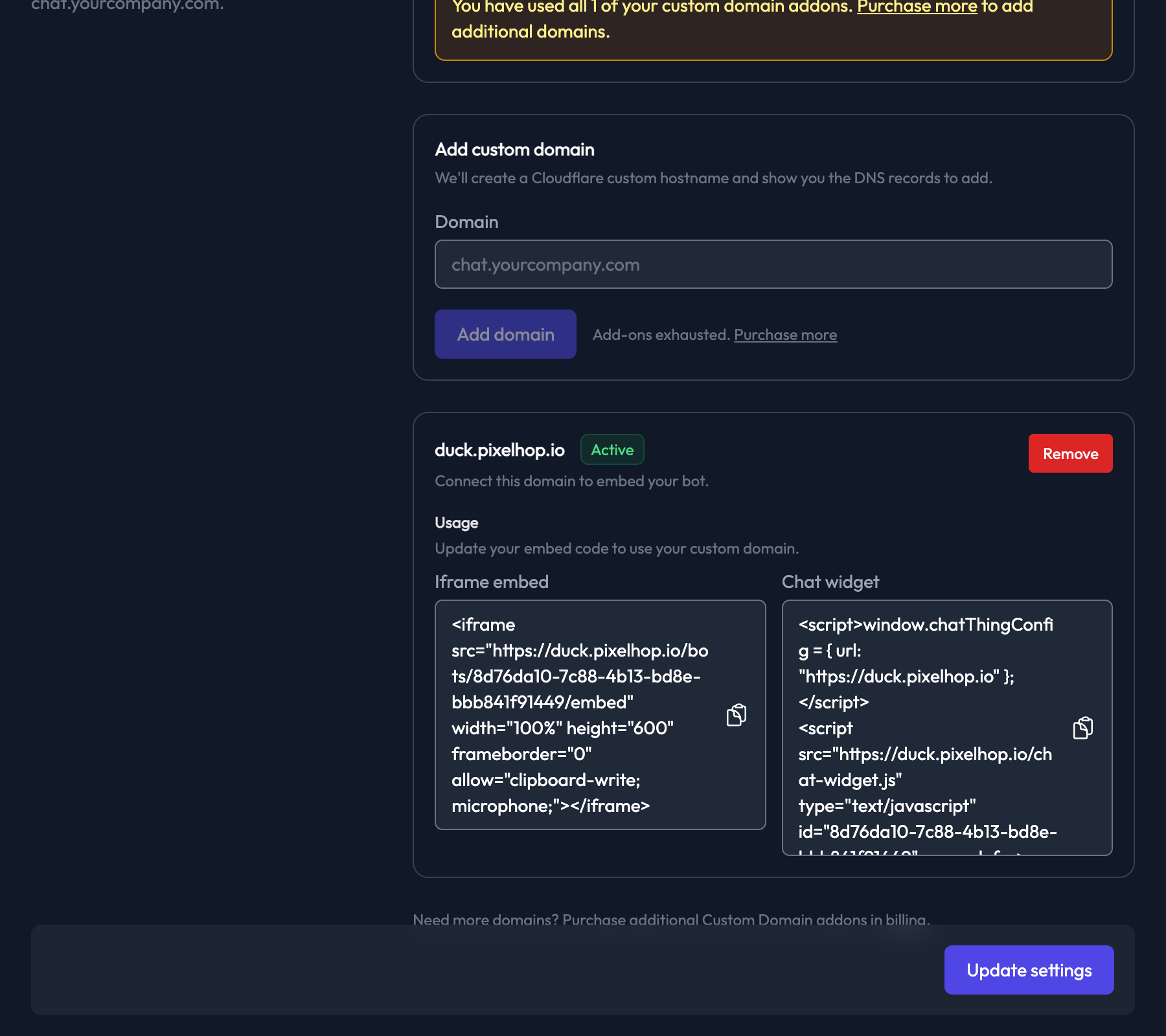
You can embed your bot using either an iframe or the chat widget, just as you would with the default domain:
**Iframe embed:**
```
```
**Chat widget:**
```
```
## Managing your domains
### Removing a domain
To remove a custom domain, click the **Remove** button next to the domain you want to delete. This will remove the domain from your bot and free up the addon slot for use with another domain.
### Domain quotas
Each Custom Domain addon you purchase provides one domain slot across your team. You can see how many slots you've used and how many are remaining in the **Domain usage** section. To add more domains, purchase additional Custom Domain addons from your [billing page](https://staging-app.chatthing.ai/app/billing).